Tag: VSCode

  • Setting Up an OpenCV CUDA Dev Environment with Docker and Debugging via VSCode

    Docker OpenCV CUDA Python VSCode RTX 3060

    To use CUDA acceleration with OpenCV, pip install opencv-python simply won’t cut it. CUDA support requires building OpenCV from source. In this post, I’ll show you how to set up a clean, isolated development environment using Docker — without polluting your host system — and debug your code directly inside the container using VSCode.


    Why Can’t We Just Use pip install?

    The opencv-python package on PyPI is a generic build with no CUDA support. CUDA features must be enabled at compile time by linking against the CUDA libraries.

    MethodCUDA SupportNotes
    pip install opencv-pythonGeneric build, CPU only
    Build from source (host)Pollutes host environment
    Docker + build from sourceIsolated, clean — recommended

    1 Prerequisites

    Make sure the following are installed on your host machine:

    • NVIDIA Driver (verify with nvidia-smi)
    • Docker
    • nvidia-container-toolkit
    # Install nvidia-container-toolkit
    sudo apt install nvidia-container-toolkit
    sudo systemctl restart docker
    
    # Verify GPU is accessible inside Docker
    docker run --gpus all --rm nvidia/cuda:12.8.0-base-ubuntu22.04 nvidia-smi
    💡 Note
    You do NOT need to install the CUDA Toolkit (nvcc) on your host. It’s already included inside the Docker image.

    2 Run the NVIDIA Official CUDA Image

    docker run --gpus all -it \
      --name opencv-cuda \
      -v /your/project/path:/workspace \
      nvidia/cuda:12.8.0-cudnn-devel-ubuntu22.04 \
      bash

    Verify GPU and nvcc inside the container:

    nvcc --version
    nvidia-smi
    ✅ Expected Output
    nvcc: NVIDIA (R) Cuda compiler driver
    Cuda compilation tools, release 12.8
    
    NVIDIA GeForce RTX 3060  |  CUDA Version: 12.8

    3 Install Dependencies

    If apt is slow, switch to a faster mirror first:

    # Switch to a faster mirror (optional)
    sed -i 's/archive.ubuntu.com/mirror.kakao.com/g' /etc/apt/sources.list
    sed -i 's/security.ubuntu.com/mirror.kakao.com/g' /etc/apt/sources.list
    
    apt update && apt install -y \
      python3 python3-pip python3-dev \
      cmake git g++ \
      libgtk2.0-dev pkg-config \
      libavcodec-dev libavformat-dev libswscale-dev
    
    pip3 install numpy

    4 Build OpenCV from Source

    cd /workspace
    
    git clone https://github.com/opencv/opencv.git
    git clone https://github.com/opencv/opencv_contrib.git
    
    cd opencv && mkdir build && cd build
    
    cmake .. \
      -D WITH_CUDA=ON \
      -D OPENCV_CUDA_ARCH_BIN="8.6" \
      -D CUDA_ARCH_BIN="8.6" \
      -D CUDA_ARCH_PTX="" \
      -D OPENCV_EXTRA_MODULES_PATH=/workspace/opencv_contrib/modules \
      -D WITH_CUBLAS=ON \
      -D BUILD_opencv_python3=ON \
      -D CMAKE_BUILD_TYPE=Release
    💡 CUDA_ARCH_BIN by GPU
    RTX 3060 → 8.6  |  RTX 3090 → 8.6  |  RTX 4090 → 8.9  |  RTX 5070 Ti → 8.9 ~ 9.0

    After cmake completes, verify these lines in the output:

    --   NVIDIA CUDA:   YES (ver 12.8, CUFFT CUBLAS)  ✅
    --     NVIDIA GPU arch:  86                        ✅
    --   cuDNN:          YES (ver 9.7.0)               ✅
    --   Python 3:
    --     Libraries:    /usr/lib/.../libpython3.10.so ✅
    --     numpy:        .../numpy/_core/include       ✅

    Build and install (takes 30min ~ 1hr):

    make -j$(nproc)
    make install

    5 Verify the Build

    python3 -c "
    import cv2
    print('OpenCV version:', cv2.__version__)
    print('CUDA devices:', cv2.cuda.getCudaEnabledDeviceCount())
    "
    ✅ Success
    OpenCV version: 4.14.0-pre
    CUDA devices: 1

    6 Save the Container as an Image

    If you exit the container, everything will be lost (due to –rm). Commit it as a reusable image from a new host terminal:

    # On the host
    docker ps  # Get container ID
    docker commit <container_id> opencv-cuda:latest
    
    # Verify
    docker images | grep opencv-cuda
    ⚠️ Image Size
    The resulting image will be around 13GB. Using a multi-stage Dockerfile build can reduce this to 4–5GB.

    7 Debug Inside the Container with VSCode

    Install these two VSCode extensions:

    • Remote – SSH (already installed)
    • Dev Containers (install additionally)

    Start the container:

    docker run --gpus all -it \
      --name opencv-cuda \
      -v /your/project/path:/workspace \
      opencv-cuda:latest bash

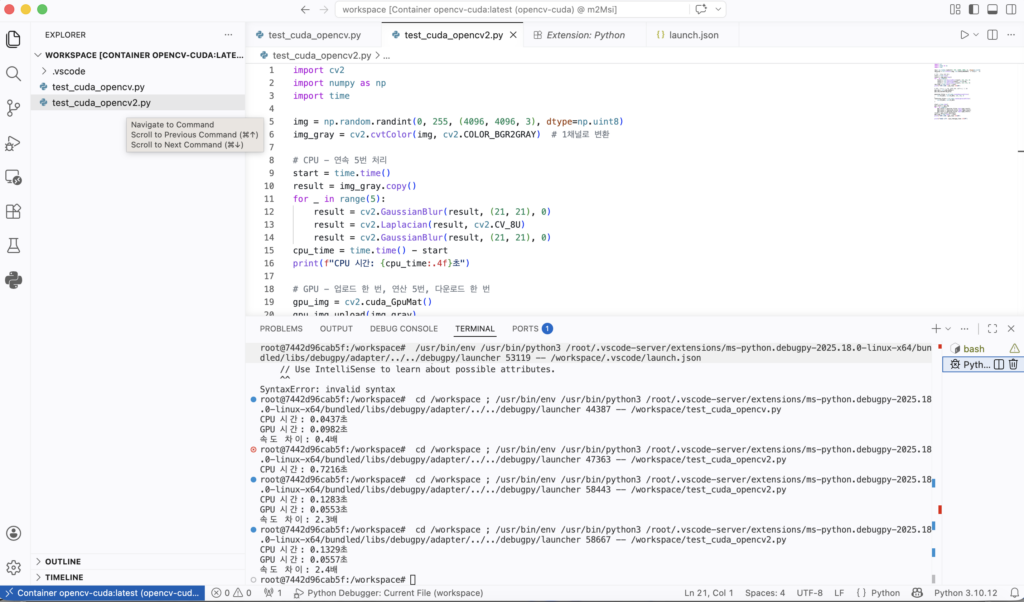
    In VSCode: click the blue button at the bottom-left → Attach to Running Container → select opencv-cuda

    Create .vscode/launch.json:

    {
      "version": "0.2.0",
      "configurations": [
        {
          "name": "Python Debugger: Current File",
          "type": "debugpy",
          "request": "launch",
          "program": "${file}",
          "console": "integratedTerminal"
        }
      ]
    }

    8 CPU vs GPU Speed Comparison

    First Attempt — Single GaussianBlur

    import cv2
    import numpy as np
    import time
    
    img = np.random.randint(0, 255, (4096, 4096, 3), dtype=np.uint8)
    
    # CPU
    start = time.time()
    result_cpu = cv2.GaussianBlur(img, (21, 21), 0)
    cpu_time = time.time() - start
    print(f"CPU time: {cpu_time:.4f}s")
    
    # GPU
    gpu_img = cv2.cuda_GpuMat()
    gpu_img.upload(img)
    start = time.time()
    gpu_filter = cv2.cuda.createGaussianFilter(cv2.CV_8UC3, cv2.CV_8UC3, (21, 21), 0)
    result_gpu = gpu_filter.apply(gpu_img)
    result_gpu.download()
    gpu_time = time.time() - start
    print(f"GPU time: {gpu_time:.4f}s")
    Result
    CPU time: 0.0437s
    GPU time: 0.0982s
    GPU is 0.4x slower 😅

    The GPU was slower because the upload/download overhead exceeded the actual computation time for a single operation.

    Second Attempt — Chained Operations (with Error)

    laplacian_filter = cv2.cuda.createLaplacianFilter(
        cv2.CV_8UC3, cv2.CV_8UC3  # ← 3-channel attempt
    )
    ❌ Error
    OpenCV Error: (-215:Assertion failed) scn == 1 || scn == 4
    in function 'LinearFilter'

    Cause: The CUDA Laplacian filter only supports 1-channel (grayscale) or 4-channel images. 3-channel BGR images are not supported.

    Fixed Code — Grayscale + 5 Chained Operations

    import cv2
    import numpy as np
    import time
    
    img = np.random.randint(0, 255, (4096, 4096, 3), dtype=np.uint8)
    img_gray = cv2.cvtColor(img, cv2.COLOR_BGR2GRAY)  # Convert to 1 channel
    
    # CPU
    start = time.time()
    result = img_gray.copy()
    for _ in range(5):
        result = cv2.GaussianBlur(result, (21, 21), 0)
        result = cv2.Laplacian(result, cv2.CV_8U)
        result = cv2.GaussianBlur(result, (21, 21), 0)
    cpu_time = time.time() - start
    print(f"CPU time: {cpu_time:.4f}s")
    
    # GPU — upload once, compute 15 times, download once
    gpu_img = cv2.cuda_GpuMat()
    gpu_img.upload(img_gray)
    
    gaussian_filter = cv2.cuda.createGaussianFilter(cv2.CV_8UC1, cv2.CV_8UC1, (21, 21), 0)
    laplacian_filter = cv2.cuda.createLaplacianFilter(cv2.CV_8UC1, cv2.CV_8UC1)
    
    start = time.time()
    gpu_result = gpu_img
    for _ in range(5):
        gpu_result = gaussian_filter.apply(gpu_result)
        gpu_result = laplacian_filter.apply(gpu_result)
        gpu_result = gaussian_filter.apply(gpu_result)
    result = gpu_result.download()
    gpu_time = time.time() - start
    print(f"GPU time: {gpu_time:.4f}s")
    print(f"Speedup: {cpu_time/gpu_time:.1f}x")
    ✅ Final Result
    CPU time: 0.1283s
    GPU time: 0.0553s
    Speedup: 2.3x 🎉

    Key Takeaways

    PointDetail
    pip install opencvNo CUDA — must build from source
    Why DockerIsolated environment, host stays clean
    GPU slower than CPUupload/download overhead > computation time
    GPU faster than CPUMore chained operations = better GPU efficiency
    Laplacian errorCUDA only supports CV_8UC1 (grayscale), not BGR
    VSCode debuggingDev Containers lets you F5-debug inside a container
  • OpenCV CUDA 개발환경 Docker로 구축하고 VSCode에서 디버깅까지

    Docker OpenCV CUDA Python VSCode RTX 3060

    OpenCV에서 CUDA 가속을 쓰려면 pip install opencv-python으로는 안 됩니다. CUDA 지원은 소스에서 직접 빌드해야 활성화됩니다. 하지만 호스트 시스템을 더럽히지 않고, Docker를 이용해 깔끔하게 환경을 구축하고 VSCode에서 디버깅까지 하는 방법을 정리했습니다.


    왜 pip install로는 안 되나?

    PyPI에 올라온 opencv-python은 범용 빌드라 CUDA가 빠져 있습니다. OpenCV는 빌드 시점에 CUDA 라이브러리를 링크해서 컴파일해야 CUDA 기능이 활성화됩니다.

    방법CUDA 지원비고
    pip install opencv-python범용 빌드, CPU만
    소스 직접 빌드호스트 환경 오염
    Docker + 소스 빌드격리, 깔끔, 추천

    1 환경 준비

    호스트에 다음이 설치되어 있어야 합니다.

    • NVIDIA 드라이버 (nvidia-smi로 확인)
    • Docker
    • nvidia-container-toolkit
    # nvidia-container-toolkit 설치
    sudo apt install nvidia-container-toolkit
    sudo systemctl restart docker
    
    # GPU가 Docker에서 보이는지 확인
    docker run --gpus all --rm nvidia/cuda:12.8.0-base-ubuntu22.04 nvidia-smi
    💡 참고
    CUDA Toolkit(nvcc)은 호스트에 설치하지 않아도 됩니다. Docker 이미지 안에 포함되어 있습니다.

    2 NVIDIA 공식 CUDA 이미지로 컨테이너 실행

    docker run --gpus all -it \
      --name opencv-cuda \
      -v /your/project/path:/workspace \
      nvidia/cuda:12.8.0-cudnn-devel-ubuntu22.04 \
      bash

    컨테이너 안에서 GPU 및 nvcc 확인:

    nvcc --version
    nvidia-smi
    ✅ 정상 출력
    nvcc: NVIDIA (R) Cuda compiler driver
    Cuda compilation tools, release 12.8
    
    NVIDIA GeForce RTX 3060  |  CUDA Version: 12.8

    3 의존성 설치

    apt 속도가 느리다면 카카오 미러로 변경합니다.

    # 카카오 미러로 변경 (한국 사용자 권장)
    sed -i 's/archive.ubuntu.com/mirror.kakao.com/g' /etc/apt/sources.list
    sed -i 's/security.ubuntu.com/mirror.kakao.com/g' /etc/apt/sources.list
    
    apt update && apt install -y \
      python3 python3-pip python3-dev \
      cmake git g++ \
      libgtk2.0-dev pkg-config \
      libavcodec-dev libavformat-dev libswscale-dev
    
    pip3 install numpy

    4 OpenCV 소스 빌드

    cd /workspace
    
    git clone https://github.com/opencv/opencv.git
    git clone https://github.com/opencv/opencv_contrib.git
    
    cd opencv && mkdir build && cd build
    
    cmake .. \
      -D WITH_CUDA=ON \
      -D OPENCV_CUDA_ARCH_BIN="8.6" \
      -D CUDA_ARCH_BIN="8.6" \
      -D CUDA_ARCH_PTX="" \
      -D OPENCV_EXTRA_MODULES_PATH=/workspace/opencv_contrib/modules \
      -D WITH_CUBLAS=ON \
      -D BUILD_opencv_python3=ON \
      -D CMAKE_BUILD_TYPE=Release
    💡 CUDA_ARCH_BIN GPU별 값
    RTX 3060 → 8.6  |  RTX 3090 → 8.6  |  RTX 4090 → 8.9  |  RTX 5070 Ti → 8.9 ~ 9.0

    cmake 완료 후 반드시 아래 항목 확인:

    --   NVIDIA CUDA:   YES (ver 12.8, CUFFT CUBLAS)  ✅
    --     NVIDIA GPU arch:  86                        ✅
    --   cuDNN:          YES (ver 9.7.0)               ✅
    --   Python 3:
    --     Libraries:    /usr/lib/.../libpython3.10.so ✅
    --     numpy:        .../numpy/_core/include       ✅

    빌드 및 설치 (30분~1시간 소요):

    make -j$(nproc)
    make install

    5 빌드 확인

    python3 -c "
    import cv2
    print('OpenCV version:', cv2.__version__)
    print('CUDA devices:', cv2.cuda.getCudaEnabledDeviceCount())
    "
    ✅ 성공 출력
    OpenCV version: 4.14.0-pre
    CUDA devices: 1

    6 이미지 저장

    컨테이너를 나가면 빌드한 내용이 사라집니다. 호스트의 새 터미널에서 커밋해 이미지로 저장합니다.

    # 호스트에서
    docker ps  # 컨테이너 ID 확인
    docker commit <container_id> opencv-cuda:latest
    
    # 확인
    docker images | grep opencv-cuda
    ⚠️ 이미지 크기
    빌드 결과물이 모두 포함되어 약 13GB 정도 됩니다. 멀티스테이지 빌드를 사용하면 4~5GB로 줄일 수 있습니다.

    7 VSCode Dev Containers로 디버깅 연결

    VSCode 확장 2개를 설치합니다.

    • Remote – SSH (기존)
    • Dev Containers (추가 설치)

    컨테이너를 실행한 후:

    docker run --gpus all -it \
      --name opencv-cuda \
      -v /your/project/path:/workspace \
      opencv-cuda:latest bash

    VSCode 왼쪽 하단 파란 버튼 → Attach to Running Containeropencv-cuda 선택

    .vscode/launch.json 생성:

    {
      "version": "0.2.0",
      "configurations": [
        {
          "name": "Python Debugger: Current File",
          "type": "debugpy",
          "request": "launch",
          "program": "${file}",
          "console": "integratedTerminal"
        }
      ]
    }

    8 CPU vs GPU 속도 비교 테스트

    첫 번째 시도 – 단순 GaussianBlur 1회

    import cv2
    import numpy as np
    import time
    
    img = np.random.randint(0, 255, (4096, 4096, 3), dtype=np.uint8)
    
    # CPU
    start = time.time()
    result_cpu = cv2.GaussianBlur(img, (21, 21), 0)
    cpu_time = time.time() - start
    print(f"CPU 시간: {cpu_time:.4f}초")
    
    # GPU
    gpu_img = cv2.cuda_GpuMat()
    gpu_img.upload(img)
    start = time.time()
    gpu_filter = cv2.cuda.createGaussianFilter(cv2.CV_8UC3, cv2.CV_8UC3, (21, 21), 0)
    result_gpu = gpu_filter.apply(gpu_img)
    result_gpu.download()
    gpu_time = time.time() - start
    print(f"GPU 시간: {gpu_time:.4f}초")
    결과
    CPU 시간: 0.0437초
    GPU 시간: 0.0982초
    속도 차이: 0.4배 (GPU가 더 느림 😅)

    GPU가 더 느린 이유는 upload/download 전송 오버헤드가 연산 시간보다 크기 때문입니다.

    두 번째 시도 – 연속 연산 (Laplacian 에러 발생)

    laplacian_filter = cv2.cuda.createLaplacianFilter(
        cv2.CV_8UC3, cv2.CV_8UC3  # ← 3채널로 생성 시도
    )
    ❌ 에러 발생
    OpenCV Error: (-215:Assertion failed) scn == 1 || scn == 4
    in function 'LinearFilter'

    원인: CUDA Laplacian 필터는 1채널(그레이스케일) 또는 4채널만 지원합니다. 3채널(BGR) 컬러 이미지는 지원하지 않습니다.

    수정 코드 – 그레이스케일 변환 후 연속 연산 5회

    import cv2
    import numpy as np
    import time
    
    img = np.random.randint(0, 255, (4096, 4096, 3), dtype=np.uint8)
    img_gray = cv2.cvtColor(img, cv2.COLOR_BGR2GRAY)  # 1채널 변환
    
    # CPU
    start = time.time()
    result = img_gray.copy()
    for _ in range(5):
        result = cv2.GaussianBlur(result, (21, 21), 0)
        result = cv2.Laplacian(result, cv2.CV_8U)
        result = cv2.GaussianBlur(result, (21, 21), 0)
    cpu_time = time.time() - start
    print(f"CPU 시간: {cpu_time:.4f}초")
    
    # GPU - 업로드 1번, 연산 15번, 다운로드 1번
    gpu_img = cv2.cuda_GpuMat()
    gpu_img.upload(img_gray)
    
    gaussian_filter = cv2.cuda.createGaussianFilter(cv2.CV_8UC1, cv2.CV_8UC1, (21, 21), 0)
    laplacian_filter = cv2.cuda.createLaplacianFilter(cv2.CV_8UC1, cv2.CV_8UC1)
    
    start = time.time()
    gpu_result = gpu_img
    for _ in range(5):
        gpu_result = gaussian_filter.apply(gpu_result)
        gpu_result = laplacian_filter.apply(gpu_result)
        gpu_result = gaussian_filter.apply(gpu_result)
    result = gpu_result.download()
    gpu_time = time.time() - start
    print(f"GPU 시간: {gpu_time:.4f}초")
    print(f"속도 차이: {cpu_time/gpu_time:.1f}배")
    ✅ 최종 결과
    CPU 시간: 0.1283초
    GPU 시간: 0.0553초
    속도 차이: 2.3배 🎉

    핵심 정리

    포인트내용
    pip install opencvCUDA 미포함, 소스 빌드 필요
    Docker 사용 이유호스트 시스템 오염 없이 격리된 환경 구축
    GPU가 느린 경우upload/download 오버헤드 > 연산 시간
    GPU가 빠른 경우연산을 많이 연속으로 할수록 유리
    Laplacian 에러CUDA는 1채널(CV_8UC1)만 지원, BGR 불가
    VSCode 디버깅Dev Containers로 컨테이너 안에서 F5 디버깅 가능